Top 10 Hidden Android Features You Should Be Using Right Now

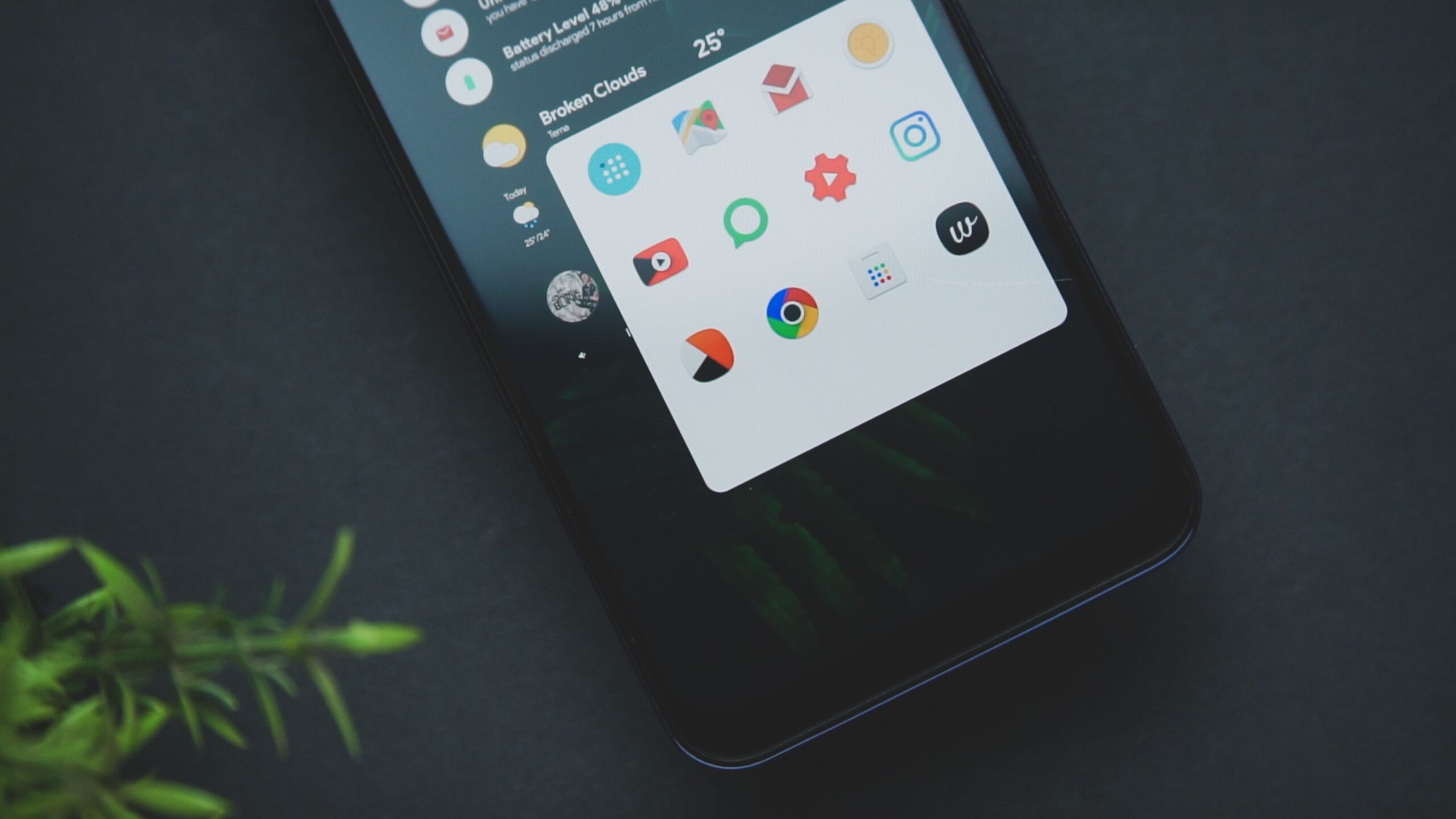
Android is the most versatile mobile operating system, yet millions of users only scratch the surface of its capabilities. Buried within the Settings menu, notification tray, and even the dialer are tools that can save time, extend battery life, enhance privacy, and streamline daily tasks. Below are ten hidden Android features that you should enable immediately.
1. Nearby Share for Instant File Transfers
Android’s answer to Apple’s AirDrop is Nearby Share, a feature that uses Bluetooth, Wi-Fi, and WebRTC to transfer files between devices. To access it, swipe down twice to open Quick Settings, tap the Edit (pencil) icon, and drag the Nearby Share tile into your active list. Once enabled, you can send photos, documents, links, and even app APKs to nearby Android devices, Chromebooks, or Windows PCs (via the Nearby Share Beta app). The feature works offline and prioritizes speed—a 100MB video transfers in under 10 seconds under optimal conditions. For privacy, toggle “Visibility” to “Hidden” when not in use.
2. Lockscreen Widgets for Quick Glances
Android 12+ reintroduced a streamlined widget system, but most users overlook lockscreen widgets. On Pixel devices and select others (Samsung One UI 4+), long-press the lockscreen, tap “Customize,” then “Widgets.” Add shortcuts for weather, calendar events, fitness rings, or music controls without unlocking your phone. This reduces friction—check your next meeting or steps count in a single glance. For non-Pixel users, third-party apps like “Lockscreen Widgets” replicate the functionality via accessibility services.
3. Private Space for Hidden Apps
Android 15 introduced Private Space, a hidden profile that isolates sensitive apps behind a separate authentication method. Go to Settings > Security & Privacy > Private Space. Once set up, a new drawer appears at the bottom of your app list (swipe down to reveal). Apps moved here (e.g., banking, dating, or medical) vanish from the main app drawer, recent tasks, and notifications. You can even hide the Private Space entry itself by disabling “Show Private Space when unlocked” in settings. For older versions, use “Secure Folder” (Samsung) or “Parallel Space” (third-party).
4. Internet Sharing via QR Code
Tired of reciting Wi-Fi passwords? Android’s built-in sharing feature generates a QR code. Navigate to Settings > Network & Internet > Internet. Tap the gear icon next to your connected network, then select “Share.” Authenticate via fingerprint or PIN, and a QR code appears. Guests scan it with any device’s camera to connect instantly. The code also embeds the password for manual entry. This feature works on all Android 10+ devices and even updates automatically if you change the password later.
5. Scan Documents Without Third-Party Apps
Google Drive’s scan function is well-known, but Android’s native Files app hides a superior document scanner. Open the Files app, tap the three-dot menu in the top-right, and select “Scan.” Position your camera over a document, receipt, or whiteboard. The auto-crop feature straightens edges, and you can adjust brightness, color (grayscale, color), and orientation before saving as a PDF. No cloud upload required—the file stays local. For batch scanning, tap “Add page” to combine multiple photos into one PDF.
6. Game Dashboard for Performance & Recording
Android 12+ includes a Game Dashboard that optimizes performance while gaming. To activate, go to Settings > Notifications > Do Not Disturb > Schedules > Game Mode. Toggle “Game Dashboard” on. When you open a game, a floating icon appears. Tap it to access: Screenshot, Screen Record (with mic and touch indicators), Do Not Disturb (blocks calls and notifications), and Performance Mode (prioritizes GPU/CPU). You can even cast your gameplay to a TV via the “Live” streaming option (select regions). This eliminates the need for third-party recording apps.
7. Custom Vibration Patterns for Contacts
Miss identifying callers without looking? Android allows per-contact vibration patterns. Open the Contacts app, select a person, tap the three-dot menu, “Set ringtone,” then “Vibration.” Choose from patterns like “Heartbeat,” “Staccato,” or “S.O.S.” You can also create a custom pattern by tapping the rhythm (e.g., long-short-long for “Mom”). For alerts, assign patterns in Settings > Sound & Vibration > Vibration & Haptics > Notification Vibration. This works system-wide for WhatsApp, Telegram, and SMS too.
8. Digital Wellbeing’s Zen Mode for Deep Focus
Zen Mode is a hidden gem within Digital Wellbeing. It blocks all distractions for a preset time (10–120 minutes). Access it via Settings > Digital Wellbeing > Zen Mode. You can customize which apps are allowed (e.g., phone, clock, camera) and set a motivation quote. While in Zen Mode, notifications are silenced, app icons turn gray, and the screen becomes monochrome. Unlike Do Not Disturb, Zen Mode cannot be canceled early—you must let the timer run. This is ideal for studying, meetings, or sleep preparation.
9. Smart Lock for Hands-Free Unlocking
Android’s Smart Lock saves time in secure environments. Go to Settings > Security > Smart Lock (or search “Smart Lock”). Choose from:
- On-body detection: Stays unlocked while you’re holding or carrying it.
- Trusted places: Auto-unlocks at home, work, or a custom location (e.g., gym).
- Trusted devices: Unlocks when connected to a specific Bluetooth device (e.g., car, smartwatch, headphones).
- Voice Match: Unlocks when your voice matches a saved “OK Google” model.
Combine multiple options—e.g., on-body detection at home—for seamless access without compromising security.
10. Emergency SOS & Safety Check
Android’s safety features are often buried but can save lives. Go to Settings > Safety & Emergency. Enable Emergency SOS: Rapidly press the power button 5 times to call emergency services, share your location with emergency contacts, and record a 5-second video (stored locally). Safety Check schedules a timer (e.g., 30 minutes); if you don’t confirm you’re safe, the phone sends an alert to your contacts. You can also add medical information (blood type, allergies) to the lockscreen via Settings > Safety & Emergency > Medical Info. First responders can view this without unlocking your device.
Mastering Android’s Hidden Potential
These ten features—spanning productivity, privacy, safety, and convenience—are already on your phone, waiting to be activated. They require no root access, no extra downloads, and minimal setup time. By integrating them into your daily routine, you transform Android from a basic smartphone OS into a customized powerhouse. Explore each one gradually; you may discover additional sub-features that further optimize your experience. The best part: every new Android update typically adds more hidden tools, so revisit your settings every few months to stay ahead.